

THE DEFORMATION TOOL
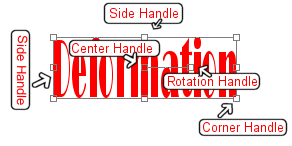
Vector objects, unlike raster objects, can be deformed. You use the Text, Draw, and Preset Shape tools to create vector objects. When selected, vector objects appear surrounded with deformation handles.
Although an object on a raster layer cannot be deformed, you can deform a raster layer. Use the Deformation tool to deform a raster layer. Once you select the Deformation tool, the deformation handles will surround the layer.
- Drag the corner deformation handles to resize an object.
- To move an object, click on the center handle and drag.
- To rotate an object, click on the rotation handle and drag.
- To increase the width of an object, drag either of the side handles.
- To increase the height of an object, drag either the top or bottom handle.
- To change the perspective of an object, hold down the Ctrl key while you drag one of the corners of the object.
- To skew an object, hold down the Shift key while dragging one of the side handles.
- To distort an object or group, hold down Ctrl-Shift while dragging a corner handle.
Exercises:
Deformation -- Vector Object
This exercise illustrates using the deformation handles on a vector object.
- Open a new file.
File > New
Settings:
Width: 200 Pixels
Height: 100 Pixels
Resolution: 72 Pixels/inch
Background Color: White
Image Type: 16.7 Million Colors
- Select the Text tool and place the word DEFORM on the canvas.
Settings:
Name: Arial
Size: 26
Script: Western
Create As: Vector
Antialias: Yes
Kerning: 0
Leading: -1
Auto Kern: Yes
Color: Black
Center
Enter Text Here: DEFORM
- Experiment with the deformation handles.
Deformation -- Raster Layer
This exercise illustrates using the deformation handles on a raster layer.
- Open a new file.
File > New
Settings:
Width: 200 Pixels
Height: 200 Pixels
Resolution: 72 Pixels/inch
Background Color: White
Image Type: 16.7 Million Colors
- Create a new raster layer.
Layers > New Raster Layer
Name: Deform
Blend Mode: Normal
Opacity: 100
Group: 0
Layer is Visible: Yes
Lock Transparency: No
Mask is Enabled for the Layer: Yes
Mask is Locked with Layer: Yes
Auto Proof: Yes
- Set your foreground color to green.
Settings:
Red: 0
Green: 192
Blue: 192
- Select the Paint Brush tool.
Settings:
Paint Brush Type: Normal
Shape: Round
Size: 50
Hardness: 100
Opacity: 100
Step: 100
Density: 100
Paint Brush Options Tab
Paper Texture: None
Built Up Brush: Yes
- Place two dots on the canvas.
- Select the Deformation tool
 .
. - Experiment with the deformation handles.
| Table of Contents |
