

THE TOOL PALETTE
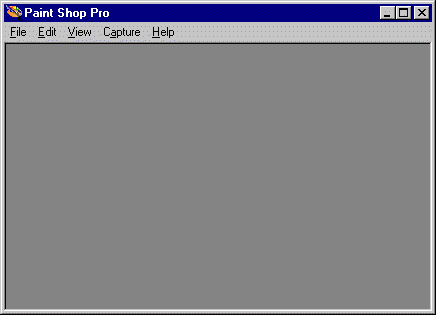
When you open Paint Shop Pro for the first time, you will be presented with a screen similar to the one shown here.
To display the toolbars, choose View > Toolbars from the menu. In the Toolbars dialog box, select Color Palette, Status Bar, Tool Bar, and Tool Palette. Your screen should now look similar to the one shown here.
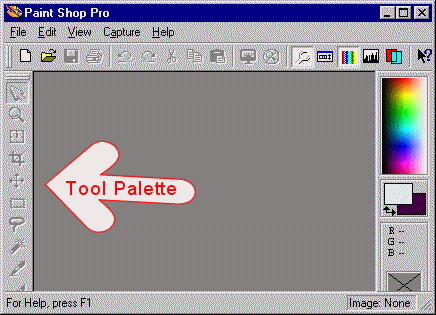
The Tool palette displays along the left edge of the window and contains
the tools you will use to manipulate, select, and alter your image. See
the following table for a description of the tools.
| The Tool Palette | ||
 |
Arrow | Use the Arrow to move around the image. The Arrow is particularly useful when the image is too large to fit on the screen. First select the Arrow, and then left-click and drag. |
 |
Zoom | Use the Zoom to zoom in on and out from an image. Left-click on the image to zoom in. Right-click on the image to zoom out. |
 |
Deformation | Use the Deformation tool to resize, rotate, move, skew, or distort the current layer. You cannot deform the "Background" layer. You can deform all other layers, and you can promote the background to a layer. |
 |
Crop | Use the Crop tool to clip off the outer edges of the image. |
 |
Mover | Use the Mover tool to move a layer or a selection. Left-click to move a layer. Right-click to move a selection. |
 |
Selection | Use the Selection tool to select an area. The selected area can be a circle, ellipse, square, or rectangle. To add to a selection, hold down the Shift key while selecting the additional area. To remove an area from the current selection, hold down the Ctrl key while removing the selection. |
 |
Freehand | The Freehand tool is also a selection tool. Use the Freehand tool to make a selection based on an image border. |
 |
Magic Wand | The Magic Wand is another selection tool. Use the Magic Wand to make selections based on elements of color or the existence of pixels. |
 |
Dropper | Use the Dropper to select a color from the image and make that color either the foreground color or the background color. Select the Dropper and left-click on the image to change the foreground color to the image color. Select the Dropper and right-click on the image to change the background color to the image color. |
 |
Paint Brush | Use the Paint Brush to paint on the canvas. It provides a variety of painting styles and brush tips. |
 |
Clone Brush | Use the Clone Brush to copy all or part of an image to another location within the same image or to another image. Right-click to select the image or part of the image to be cloned. Left-click to place the cloned image. |
 |
Color Replacer | Use the Color Replacer tool to replace one color in an image with another color in the same image. |
 |
Retouch | Use the Retouch tool to apply an effect to part of an image, as opposed to the entire image. You use the Retouch tool to adjust color, soften, sharpen, emboss, or smudge. |
 |
Eraser | On the "Background" layer, left-click with the Eraser to replace the current color with the background color, and right-click with the Eraser to replace the current color with the foreground color. On layers other than the "Background" layer, left-click to make the area on the current layer transparent, and right-click to apply the foreground color to the area. |
 |
Picture Tube | Use the Picture Tube to place objects on an image without having to draw the object. You simply select a Picture Tube, click on the canvass, and the image appears. Paint Shop Pro comes with several Picture Tubes, and you can create your own. |
 |
Airbrush | Use the Airbrush to create a spray paint effect. |
 |
Flood Fill | Use the Flood Fill tool to fill an image or a selection with a color, pattern, or gradient. |
 |
Text | Use the Text tool to add or edit image text. |
 |
Draw | Use the Drawing tool to draw freehand lines. |
 |
Preset Shapes | Use the Preset Shapes tool to draw preset shapes such as squares, circles, triangles, pentagons, and others. |
 |
Vector Object Selection | Use the Vector Object Selection tool to move, resize, skew, stretch, or rotate vector objects. |
Things You Need to Know
- Select a tool from the Tool palette by clicking on the tool.
- All tools have options. Set the tool options by doing either of the following:
- Left-click on the tool and then click on the Toggle Tool Options Window icon on the toolbar.
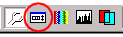
The Toggle Tool Options Window Icon
- Right-click on the tool and select Tool Options from the context menu.
Table of Contents
